

F7777 Login: Get Back Into Your Account in 2 Minutes

The sign-in steps for the app and the mobile site, plus quick fixes for a forgotten password, a missing OTP and a form that will not accept your details.
Table of Contents
Thirty seconds. That is roughly how long a normal F7777 login takes once your number and password are saved on the phone. Type them, tap the button, and the home screen opens with your balance in the corner. The same details work on the Android app and in a mobile browser, so you never juggle two sets of credentials.
Below is the whole process, plus the three things that stop people getting in: a forgotten password, a verification code that never lands, and a form that keeps rejecting what you typed. Follow the numbered checklist and you should be back inside in about 2 minutes.
What the F7777 login screen asks for
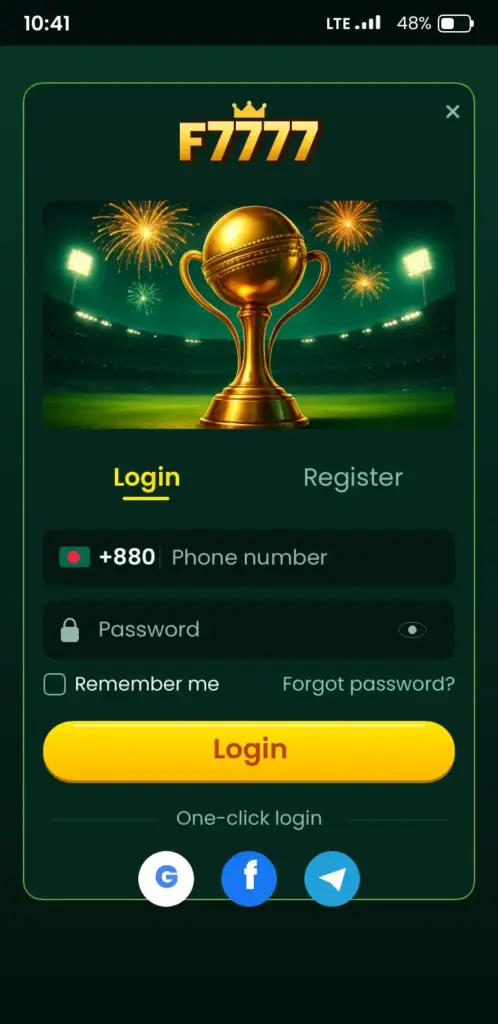
Two fields and one button — no email address, no username.
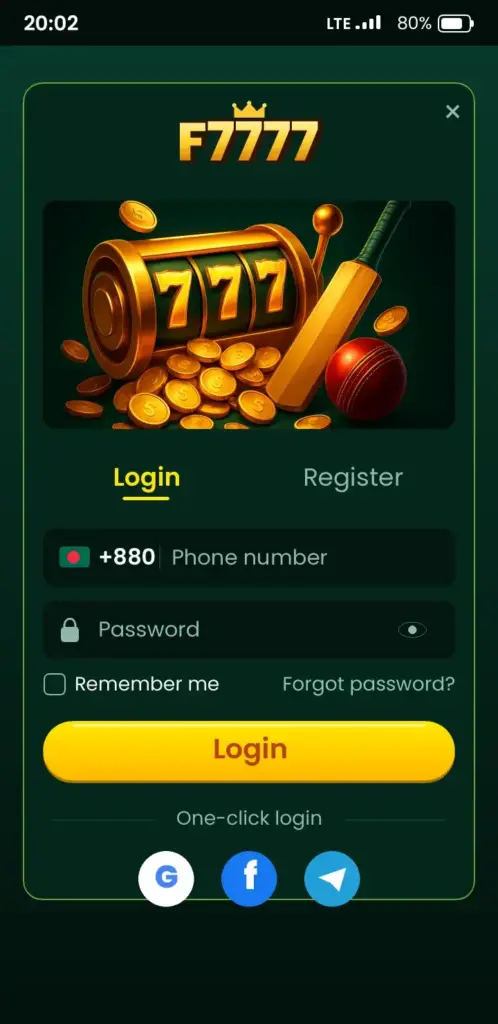
The form wants the mobile number you registered with, country code included (+880 for Bangladesh, for example +880 17XX XXXXXX), and the password you chose at sign-up. A small eye icon under the password field reveals what you typed, which saves a lot of retyping on a phone keyboard.
Those details work everywhere. Sign in on the app, then open the site in Chrome on the same handset; it is the same account, with the same balance and the same history. Nothing extra to remember, nothing to link up.
In short: one number, one password, two ways in.
Sign in on the app in four taps
App open, phone in hand — this takes under a minute.
- Tap the account icon in the bottom bar, next to the home icon.
- Type your mobile number in the first field. Drop the leading zero if the country code is already shown (017XXXXXXXX becomes +880 17XXXXXXXX).
- Enter the password. Tap the eye icon to check it before you submit.
- Press Sign In and wait for the home screen. Your balance appears in the top corner.
Tick “remember me” and the app keeps you signed in until you log out or clear the app data. On a phone only you use, that is a fair trade for skipping the form every morning. On a shared handset, leave it unticked.
No account yet? Register before you sign in
Signing in needs an account first, and creating one is a one-screen job.
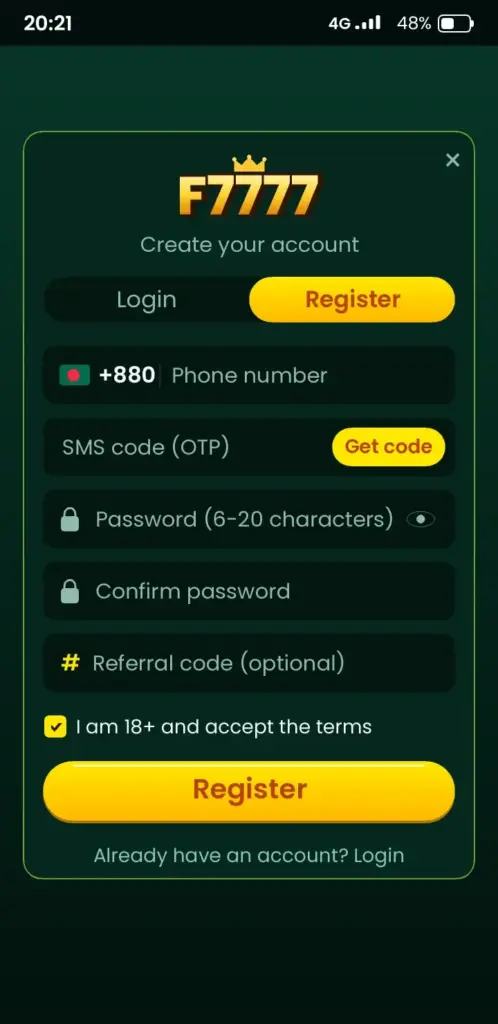
Tap Register on the sign-in screen. The form asks for a mobile number, a password, and confirmation that you are 18 or over. Some versions add a promo code box — leave it empty unless you have a code from the bonuses page.
An SMS code confirms the number. Enter it, and the account is live; you land on the home screen already signed in. Write the password down somewhere safe before you close the app, because the reset route needs the same phone.
Logging in from a mobile browser instead
The browser is the fallback when the app will not open.
Open the official site in Chrome or your usual browser, tap the menu in the top corner and choose the sign-in option. The form is identical: number, password, button. Sessions live in the browser, so closing the tab signs you out on most phones — handy on a borrowed device.
Adding the site to your home screen gives you a one-tap shortcut without installing anything. In Chrome, open the three-dot menu and pick “Add to Home screen”. The shortcut opens straight on the sign-in page.
Forgotten password? Reset it without calling support
A reset takes two minutes and one text message.
Tap “Forgot password” under the sign-in button. The app asks for your registered number, sends a one-time code by SMS, and lets you set a new password once that code is confirmed. Pick something you have not used on another site — eight characters with letters and numbers is the sensible floor.
- Use the number the account was created with; a brand-new SIM will not receive the code.
- Set the password, then sign in once manually before you save it in a password manager.
- If the reset screen rejects a code three times, request a fresh one rather than retrying the same digits.
Still locked out after a reset? Support inside the app can verify you by hand. Have your registration date and your last deposit amount (for example, a 500 BDT bKash deposit) ready — those are the details they check.
OTP and verification codes that never arrive
A missing code is almost always sitting in the SMS inbox, not in the app.
Codes arrive as ordinary text messages, so open your messaging app instead of waiting for a pop-up. A weak signal, a full inbox or a spam filter can hold the message back for a minute or two.
- Wait 60 seconds before tapping resend — a second request can cancel the first code.
- Check the number on screen matches your SIM. One wrong digit sends the code to a stranger.
- Switch airplane mode on for ten seconds, then off, to push the phone back onto the network.
- Restart the handset if two codes in a row fail to land.
In short: give the SMS a minute, confirm the number, then ask for a new code.
Keeping your account safe after you sign in
Ten seconds of habit saves a lot of grief later.
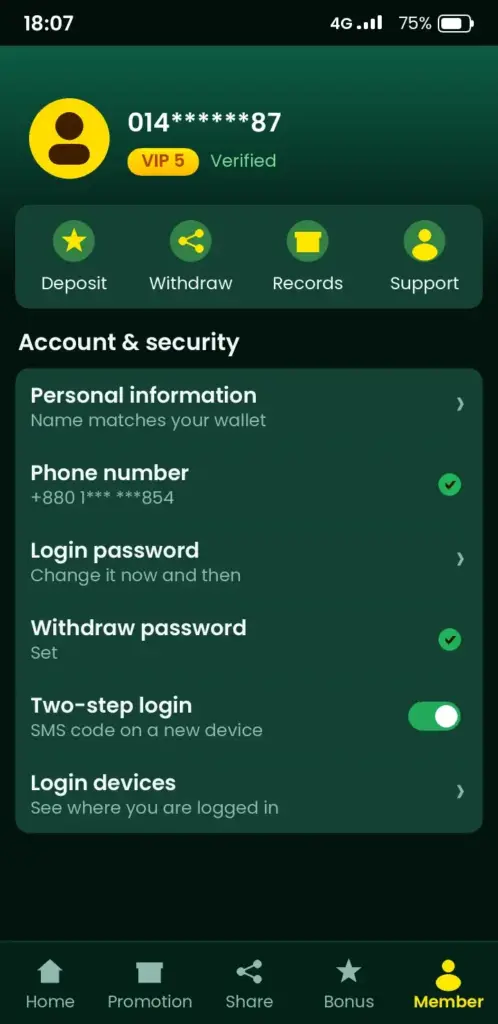
Your password and your one-time codes are the two keys to the account. Share neither. Staff never ask for a code in a chat message, and anyone who does is not staff.
- Log out on a borrowed phone rather than closing the app — the session stays alive otherwise.
- Keep Play Protect switched on in the Play Store settings; it flags tampered APK files before they install.
- Get the app only from the link on our F7777 App Download page or the official store listing, never from a random file host.
- Set a deposit limit in the account settings if you want a hard stop on spending. Gambling Therapy (gamblingtherapy.org) offers free, confidential online support and explains how limits work and why they help.
Common login problems and how to fix them
Match what you see on screen to the row below.
| What you see | Why it happens | What to do |
|---|---|---|
| “Incorrect number or password” | A typo, or an old password saved by the browser | Reveal the field with the eye icon, retype both, then reset if it still fails |
| “Invalid or expired code” | The OTP timed out while you were typing | Request a new code and enter it within the countdown shown |
| Spinner after Sign In | Cached data from an older app version | Close the app from recent apps, clear its cache in Settings, reopen |
| Temporary block message | Too many wrong attempts in a row | Stop guessing, run the password reset, then sign in once |
| White screen in the browser | Stale cookies for the site | Clear cookies for that domain or switch to the app |
| “App not installed” on update | The old APK file is still on the phone | Delete the previous file, download the latest version, install again |
App or mobile site: which is quicker for you?
Both reach the same account; the difference is how you like to work.
| Point | Android app | Mobile site |
|---|---|---|
| Getting started | One download, then install from unknown sources | Nothing to install |
| Signing in | Stays signed in with “remember me” | Signs out when the tab closes |
| Notifications | Push alerts for offers and results | None |
| Storage used | A light download; check the app page for the current size | Zero |
| Updates | Manual — install the newer APK over the old one | Automatic |
Our take: install the app on your own phone, and keep the browser route for a tablet or a friend’s device. If you have not installed it yet, the download and install walkthrough covers the unknown-sources prompt step by step.
Still stuck? What to do next
Support inside the app is the fastest route once the checklist above has failed.
Open the app, tap the support or chat icon and describe what happens: the exact message, the phone model and your Android version. Screenshots cut the back-and-forth in half. If the app will not open at all, use the contact address on this site and include the same details.
Once you are back in, the games section and the Aviator page show what is waiting on the other side of the sign-in screen. Play within limits you set yourself, and treat the balance as money spent, not money owed.
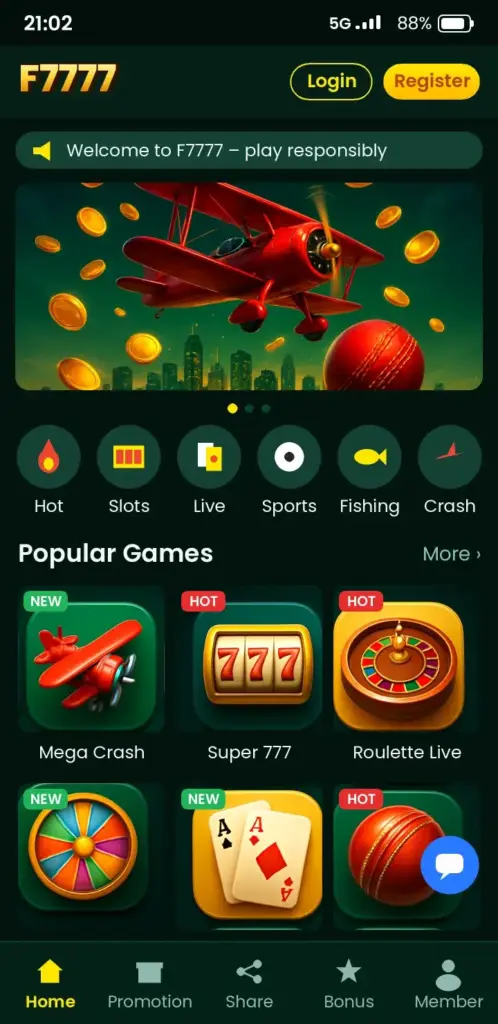
F7777 App Screenshots: Game Lobby, Login, Deposit & Bonuses
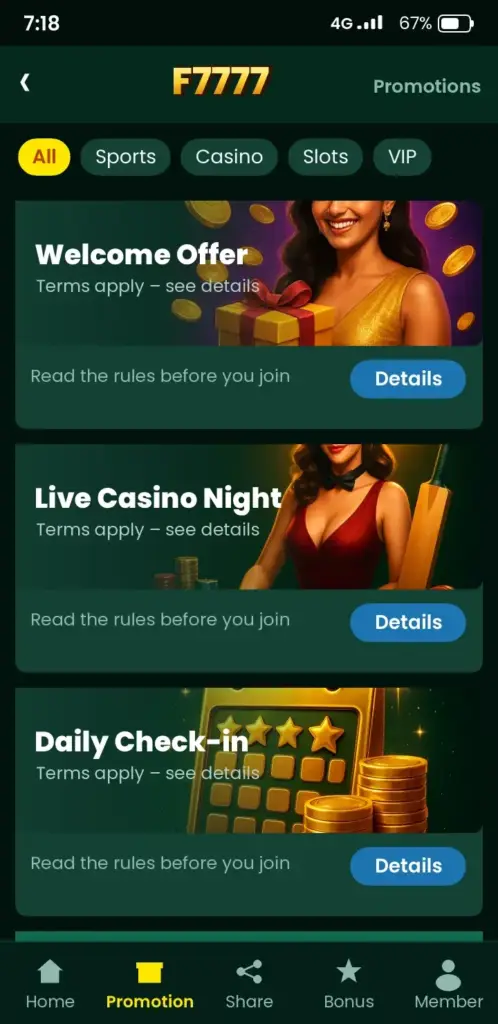
See how the F7777 app looks on an Android phone before you download it – tap any screen to open the app.
Frequently Asked Questions
How do I withdraw money from F7777 using bKash or Nagad?
Open the F7777 cashier, choose Withdraw, pick bKash or Nagad, enter the amount and your wallet number, then confirm with your withdraw password. Check the number matches your registered wallet before submitting. If the option is missing, open account settings or chat with in-app support to confirm your payment details.
How do I make a deposit on F7777?
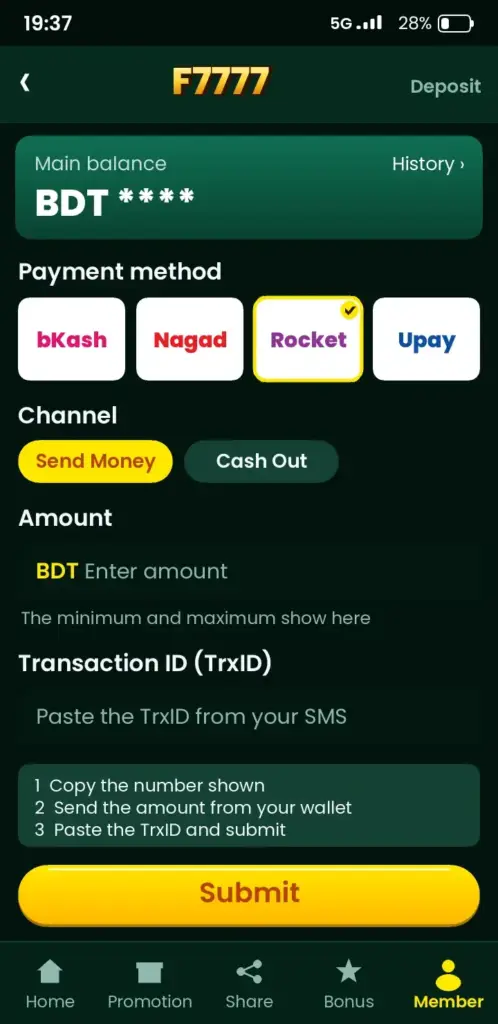
Tap Deposit in the F7777 app or mobile site, choose your payment method, enter the amount, and follow the on-screen instructions to confirm. Use only the payment details shown inside your account. If a deposit does not appear, keep the transaction receipt and contact in-app support with the amount and time.
Which payment methods does F7777 support in Bangladesh?
F7777 shows the available payment methods inside the cashier, so open Deposit or Withdraw to see the current list. Bangladeshi players commonly see bKash and Nagad options, but availability can change by account and version. Confirm the exact method and any limits on that screen before sending money.
How do I download and install the F7777 APK on Android?
Get the F7777 APK only from the official F7777 App Download page or the official store listing. Open the file, allow installs from your browser if Android asks, then tap Install. Keep Play Protect on and avoid random file hosts. After installation, sign in with your registered +880 number and password.
Can I use F7777 on an iPhone?
Check the official F7777 App Download page or the App Store listing for current iPhone support before installing anything. If no iOS app is shown, open the official F7777 site in Safari and sign in through the mobile browser with your +880 number and password. Do not install unverified iOS files.
How do I fix F7777 login problems when my password is rejected?
Reveal both fields with the eye icon, retype your +880 number and password, then try again. If it still fails, use Forgot password to reset through an SMS code. Clear old saved passwords in your browser or app settings, and make sure the number matches the SIM in your phone.
How do I reset my F7777 password if I forgot it?
Tap Forgot password under the F7777 sign-in button, enter your registered +880 number, and wait for the SMS code. Enter that code, set a new password with letters and numbers, then sign in once manually. Request a fresh code if the reset screen rejects the same digits three times.
How do I register for an F7777 account before logging in?
Tap Register on the F7777 sign-in screen, enter your +880 mobile number, create a password, and confirm you are 18 or over. Enter the SMS code sent to your phone, then tap Register. Save the password safely because the reset route needs the same registered number.
Is my F7777 account safe if I use the app on a shared phone?
Use F7777 safely by logging out instead of just closing the app on a shared handset. Never share your password or SMS codes; staff will not ask for a code in chat. Keep Play Protect on, install only from official F7777 links, and set a deposit limit in account settings if needed.
How do I check the F7777 app size or update it?
Open the F7777 App Download page or your phone’s app settings to see the installed version and file size before updating. Install updates only from the official F7777 source. After updating, sign in with your +880 number and password, and check that your balance and history are unchanged.